![Logo_quer_farbig.png]](https://docs.sentinum.de/hs-fs/hubfs/Logo_quer_farbig.png?height=40&name=Logo_quer_farbig.png)
1. Overview
JUNO TH QUICK START - ZJF201
Thank you for choosing the Juno Sensor from Sentinum. Please read the following operating instructions carefully to prevent damage to the sensor, yourself, and the environment.
Please observe the safety instructions, installation instructions, and other notes in the operating manual.
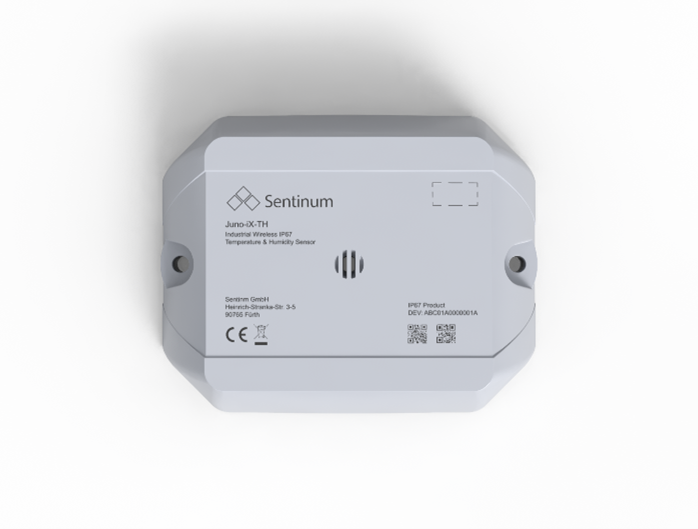
| ITEM CODE | IFM ITEM CODE | FEATURES |
|---|---|---|
| S-JUNO-IX-MIOTY-TH | ZJF 201 | INDUSTRIAL JUNO IP67 TH Sensor, Temperature and Relative Humidity with Tilt Detection and Door Open Detection mioty |
2. Version History
| Version | Date | Revision |
|---|---|---|
| 1.0.0 | April 30, 2026 | Created |
3. Sensor Activation with Magnet
There is a magnetic field switch on the sensor for easy activation. The following diagram shows the location of the magnetic field switch.
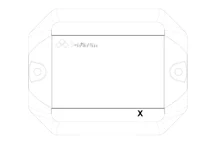
To activate the sensor, hold a standard magnet against the spot marked with an X. We recommend a neodymium magnet with a minimum surface area of 1 cm². The magnet must remain in place for at least 2 seconds until the device activates. This is confirmed by a beep.
4. Setting Up the Sensor via NFC
Activation is performed via an NFC app. A smartphone is required for this. The app can be downloaded from the respective app stores. Simply search for Sentinum LinQs and download the LinQs app.
First, locate the tag on the sensor and then the reader on your device.
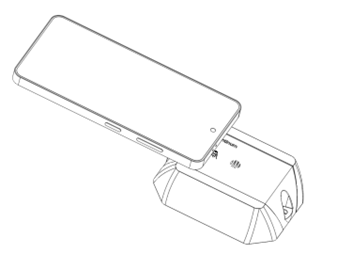
The location of the tag is also marked on the top and labeled Tap here. You can also find the location of the NFC tag in the technical drawing.
Open the app and activate the sensor. To start the sensor in the basic settings, click the Activate Sensor button in the app start menu. Now place your device on the sensor NFC tag. When the sensor is activated, Sensor updated! will be displayed. You can then proceed to activate the other sensors.
Depending on the device manufacturer, the NFC readers are located in different places. Their location can be determined experimentally. Experience shows that they are either located higher up, as described in the image for iOS devices, or more toward the center for Android.
Activate Sensor
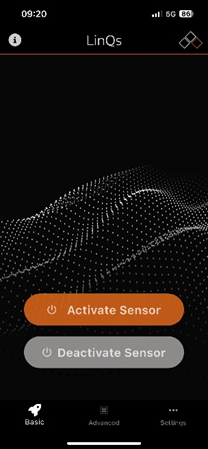
Use the Activate Sensor button to activate the sensor.
Read and set parameters via NFC
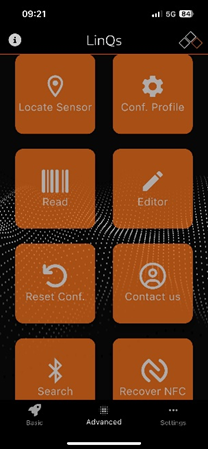
Use the Read button to read the parameters.
Set values via NFC
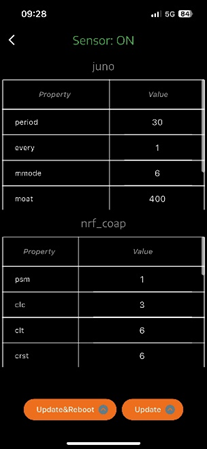
Tap the desired table entry and change the values. Confirm by tapping the Update & Reboot button at the bottom. If the sensor displays on in green in the top field, the sensor is active and transmitting data.

