![Logo_quer_farbig.png]](https://docs.sentinum.de/hs-fs/hubfs/Logo_quer_farbig.png?height=40&name=Logo_quer_farbig.png)
function Decoder(bytes, port) {

    // Conversion of signed integers
    function uncomplement(val, bitwidth) {
        var isnegative = val & (1 << (bitwidth - 1));
        var boundary   = (1 << bitwidth);
        var minval     = -boundary;
        var mask       = boundary - 1;
        return isnegative ? minval + (val & mask) : val;
    }

    var decoded = {};

    if (port === 1) {

        // Attributes
        decoded.base_id         = bytes[0] >> 4;
        decoded.major_version   = bytes[0] & 0x0F;
        decoded.minor_version   = bytes[1] >> 4;
        decoded.product_version = bytes[1] & 0x0F;

        // Telemetry
        decoded.up_cnt               = bytes[2];
        decoded.battery_voltage      = ((bytes[3] << 8) | bytes[4]) / 1000.0;
        decoded.internal_temperature = bytes[5] - 128;

        var idx = 6;

        if (decoded.product_version & 0x01) {
            decoded.operating_seconds =
                (bytes[idx++] << 24) |
                (bytes[idx++] << 16) |
                (bytes[idx++] << 8) |
                bytes[idx++];

            decoded.cycles =
                (bytes[idx++] << 24) |
                (bytes[idx++] << 16) |
                (bytes[idx++] << 8) |
                bytes[idx++];

            decoded.utilization_rate =
                ((bytes[idx++] << 8) | bytes[idx++]) / 100.0;

            decoded.is_active = bytes[idx++];
        }

        if (decoded.product_version & 0x08) {
            decoded.temperature =
                ((bytes[idx++] << 8) | bytes[idx++]) / 10 - 100;

            decoded.humidity = bytes[idx++];
        }

    } else if (port == 197) {

        var format = bytes[0];
        var offset = 1;
        var results = [];

        if (format === 0) {

            var count = Math.floor((bytes.length - offset) / 6);

            for (var i = 0; i < count; i++) {

                var macBytes = bytes.slice(
                    offset + i * 6,
                    offset + i * 6 + 6
                );

                var mac = macBytes.map(function(b) {
                    return (b < 16 ? "0" : "") +
                        b.toString(16).toUpperCase();
                }).join(":");

                results.push({ mac: mac });
            }

        } else if (format === 1) {

            var count = Math.floor((bytes.length - offset) / 7);

            for (var i = 0; i < count; i++) {

                var rssiRaw = bytes[offset + i * 7];
                var rssi = rssiRaw > 127
                    ? rssiRaw - 256
                    : rssiRaw;

                var macBytes = bytes.slice(
                    offset + i * 7 + 1,
                    offset + i * 7 + 7
                );

                var mac = macBytes.map(function(b) {
                    return (b < 16 ? "0" : "") +
                        b.toString(16).toUpperCase();
                }).join(":");

                results.push({
                    mac: mac,
                    rssi: rssi
                });
            }

        } else {
            return {
                errors: ["Unknown payload format: " + format]
            };
        }

        decoded.format = format;
        decoded.access_points = results;
    }

    return decoded;
}
1. Version History
| Version | Date | Revision |
|---|---|---|
| 1.0.0 | April 30, 2026 | Created |
2. Integrating Blueprint Sensors into the ifm mioty Gateway
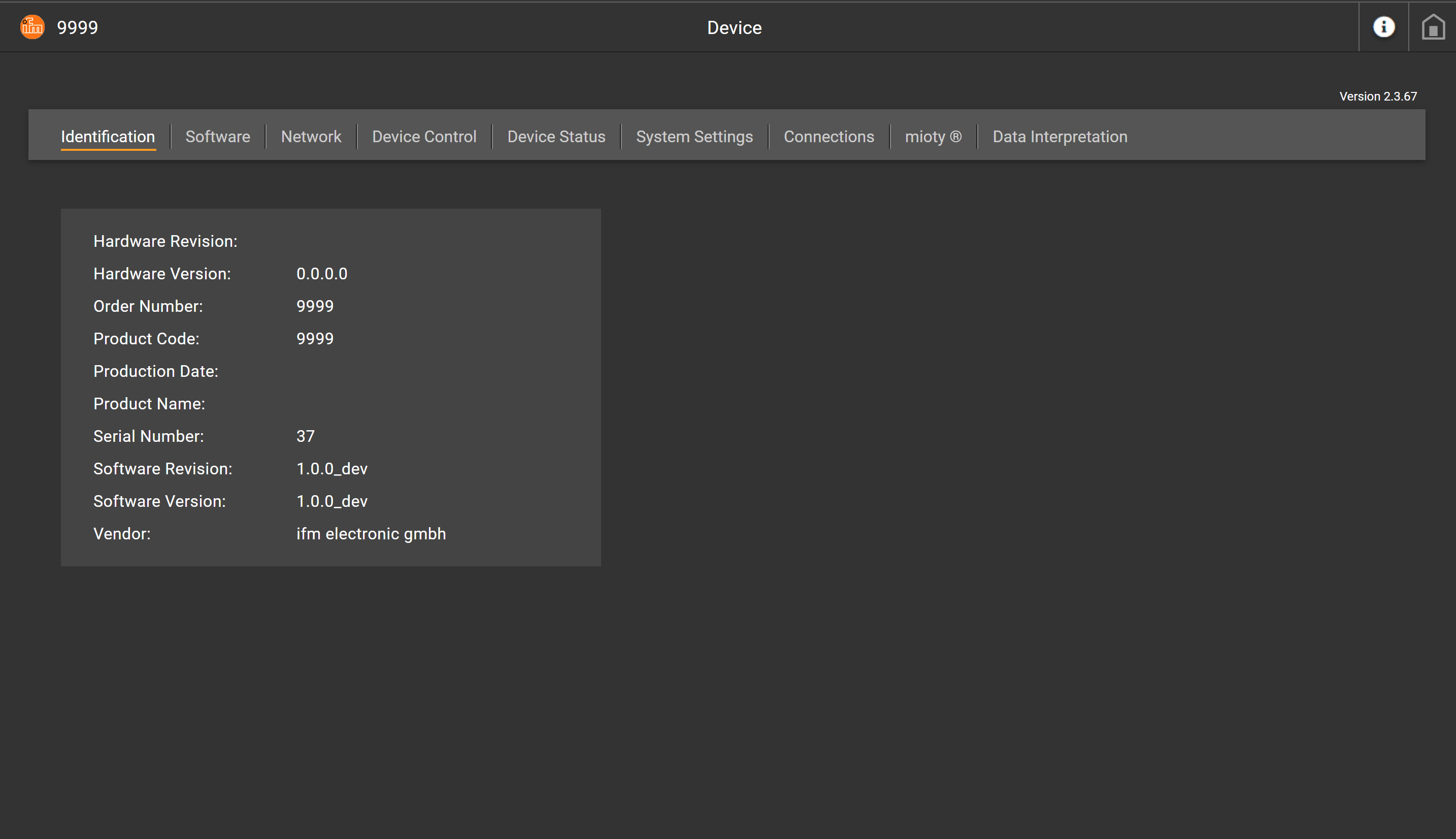
Step 1
Commission the gateway. Follow the instructions provided by ifm. You should see the following screenshot below.
Step 2
Navigate to the "Data Interpretation" tab and then to the "Blueprint" tab.
.png)
Step 3
Download the blueprint for your selected sensor. To do this, go to the page docs.sentinum.de and search for your sensor and the corresponding blueprint. In this case, we're setting up a Juno temperature and relative humidity sensor.
.png)
Step 4
Click on the entry and then on the "JSON File" button. Alternatively, you can download a TXT file further down the page.
.png)
Step 5
The blueprint should now open. Save this file to a folder by right-clicking and selecting "Save As…."
.png)
Step 6
Now return to the gateway interface. Click the "+ Add New…" button in the "Data Interpretation" tab and in the "Blueprint" tab. Upload the saved blueprint file as a .json file.
.png)
Step 7
You should now see a newly created blueprint—in this case, Juno. An EUI is automatically assigned to the blueprint. Copy or save this EUI, as you'll need it again later.
.png)
Step 8
Now let's connect the sensor. To do this, navigate to the "mioty" tab on the gateway interface and click "+ Attach New."
.png)
Step 9
The following window will now appear. Check the "Blueprint" box at the top so that you see the "Blueprint EUI" input field at the bottom. Enter the required information here and then click "OK." You can find this information in the packaging as a QR code or conveniently request it as a CSV fileat beiinfo@sentinum.de. Important: You'll need the Blueprint EUI again for this step.
.png)
Step 10
You have now successfully added the sensor.
.png)
Step 11
You should now see the sensor with all the necessary information.
.png)
Step 11
Now activate the sensor using a magnet or NFC. Wait a moment, then click the "Refresh" button. You should then see the following values.
.png)
Step 12
Click on the graph on the right in the Actions column to view the sensor values.
.png)